From Text to SVG: A Designer's Guide to Prompting Vector-Ready Logos
From Text to SVG: A Designer's Guide to Prompting Vector-Ready Logos
AI image generators like Midjourney and DALL-E 3 are fantastic for brainstorming logo designs. However, they have one major limitation: they output raster images (JPGs or PNGs) composed of pixels. For professional branding, clients require vector files (SVGs or EPSs) that can scale infinitely without losing quality or pixelating.
To bridge this gap, designers must generate AI images that are clean enough to be converted into vectors effortlessly using tracing tools (like Adobe Illustrator's Image Trace or automatic vector conversion software).
In this guide, we will share the ultimate blueprint for writing vector-friendly logo prompts and showcase how to use our library's curated logo templates to accelerate your design workflow.
4 Golden Rules of Vector-Friendly Logo Prompting
To ensure your AI-generated logos trace cleanly into perfect SVG curves, structure your prompts around these four principles:
1. Mandate a Solid White Background
Gradients, textures, or shadows in the background will confuse vectorization software, creating thousands of messy anchor points. Always specify a plain white background.
- Example:
Centered on a solid pure white background.
2. Force Flat, High-Contrast Shapes
Avoid 3D renders, metallic sheens, or realistic lighting. Instead, request flat, solid shapes with high contrast.
- Example:
Flat vector graphic, high contrast, solid black silhouette, minimalist design.
3. Use Explicit Style Keywords
Use industry-specific graphic design vocabulary to instruct the AI model to behave like a vector designer.
- Keywords to include:
Flat design, minimalist vector icon, clean contour lines, solid colors, geometric shape, two-dimensional.
4. Proactively Exclude Unwanted Elements (Negative Prompting)
Strictly forbid textures, shadows, and photo-realism.
- Keywords to exclude:
No shadows, no gradients, no photorealistic details, no 3D rendering, no textured backdrop.
Logo Templates From Our Gallery
Let's look at how these instructions function within real-world prompts from the Prompts Grid directory.
The Geometric/Retro Computer Logo Redesign
Our featured Retro 1980s-1990s computer graphics style logo redesign template showcases how to constrain shapes to geometric primitives, making them ideal candidates for vectorization:
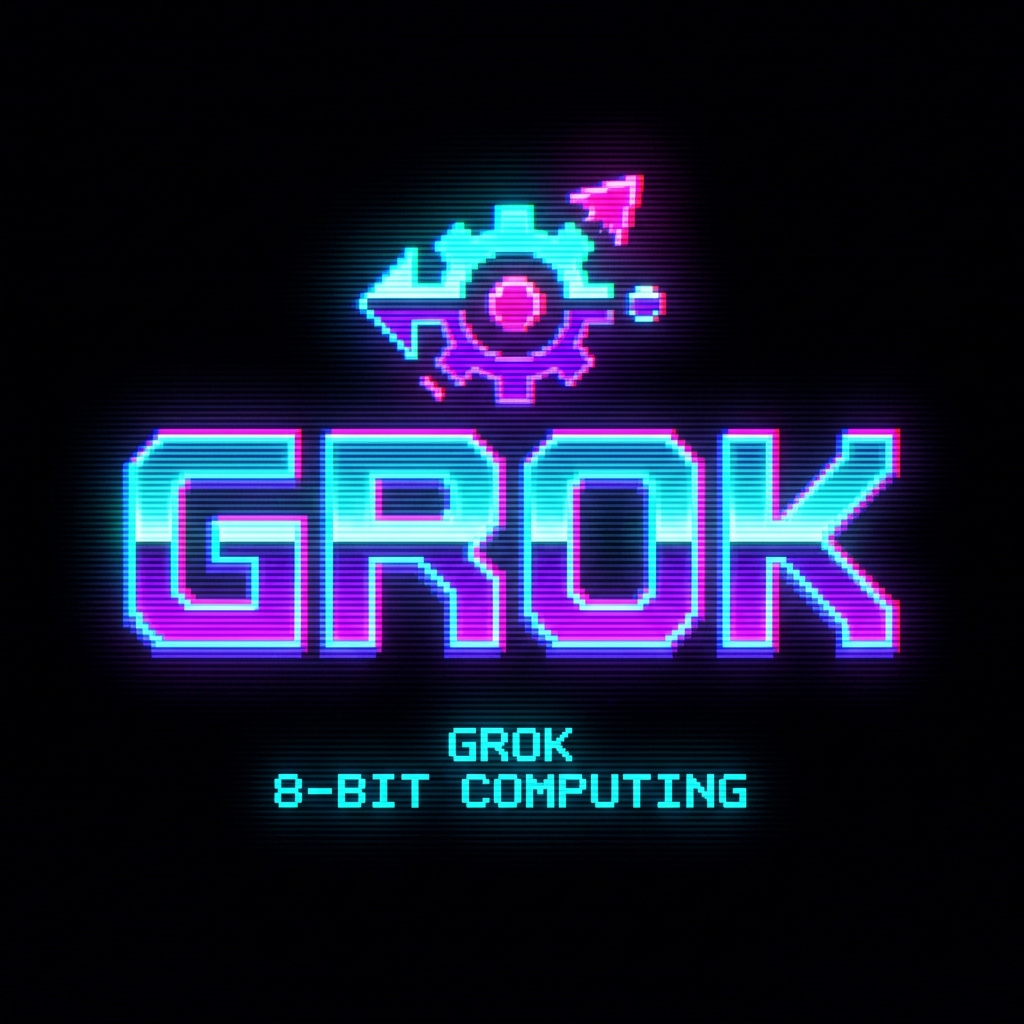
By limiting the color palette and locking the logo onto a flat plane, the geometry remains extremely sharp and ready for clean tracing.
The Vectorization Workflow: From AI to SVG
Once you generate the perfect logo layout, follow this quick process to vectorize it:
- Generate the Image: Use our template in Midjourney or ChatGPT to get a clean, high-contrast logo on a solid white background.
- Upscale: Use a basic image upscaler (or the upscale function in Midjourney) to increase the pixel resolution, which helps tracing engines detect edges better.
- Trace:
- Adobe Illustrator: Import the image, open the
Image Tracepanel, select theBlack and White LogoorSilhouettespreset, checkIgnore White, and clickExpand. - Automatic Vectorizers: Upload to an online auto-tracing tool to get a fully layered SVG in one click.
- Adobe Illustrator: Import the image, open the
- Clean Up: Delete any stray anchor points and adjust paths to achieve perfect geometric symmetry.
Customize and Generate in Seconds
Instead of writing these complex technical style guides from scratch, you can use the pre-tested assets in our Logo Design category.
Every prompt template on Prompts Grid is equipped with editable arguments. You can customize variables like the logo subject, name, or primary colors directly in the browser.
Once your design is ready, click Open in ChatGPT, Open in Gemini, or Open in Claude to run the prompt immediately and start vectorizing.